Line Renderer 2D Pro
A 2D pixel-perfect line strip renderer for Unity
Get it!X: @JailbrokenGame · Discord · Email: SiliconHeartStudio@gmail.com
 Pixel-perfect lines with any thickness.
 Line drawing computed in the GPU.
 Multi-color lines and visual effects.
Migration to 2.0
What changed
This version comes with very deep changes although this section only describes those that may require some action from users. If you need help with migration, enter the Discord channel.
- New component: For LineRenderer2D to work it has to be accompanied by LineRenderer2D_MeshRenderMethod.
- It is no longer necessary to assign cameras: Any code you wrote to assign a camera to a LineRenderer2D must be discarded, including any CameraResolver. The property Camera Tag is deprecated too.
- Until now Thickness determined the width of every “pixel” of the line. Now it defines how “fat” the line is. The pixel size is now stored in LinePixelSize.
- Reference orthographic size has been deprecated: Any code that sets that property must be discarded. If that property contained a value greater than zero for some lines, they should use a material whose PPU field stores the corresponding value. PPU can be calculated this way: Screen height / (2 x Reference orthographic size). Choose the screen height that makes the line look as thick as you need. For example, for a Reference orthographic size of 5 → PPU = 1080 / (2 * 5) = 108.
- Some material default values have been fixed: Now Gradient Start Color and Gradient End Color are white by default instead of black; Dot Length is now 1 instead of 99999 by default in the Unlit material.
- Line pixel size and resolution changes: In previous versions, when the screen resolution changed, lines with a Reference Orthographic Size greater than zero kept their pixel size (in physical screen pixels). As a result, when switching from 1080p to 4K (double the resolution), the line pixel size appeared halved relative to the rest of the elements in the scene. Now, the opposite occurs: the line occupies the same relative area on the screen (using more pixels).
- Pixel snapping now uses Floor by default: In previous versions, Round function was being used in pixel snapping calculations, but now they call Floor by default (it can be configured). This may lead to shifted line positions.
- All Visual FX are disabled by default in materials: Since now visual FX are optional, they are all disabled in the provided materials, by default.
- Visual FX are now optional: Until now LineRenderer2D instances were storing all the parameters for all visual FXs, and sending most of them to the GPU even if they were not used at all. Now, for a visual FX to be processed, it has to be added to the list in the inspector.
Inspectors comparison, version 1.3.0 VS version 2.0.0
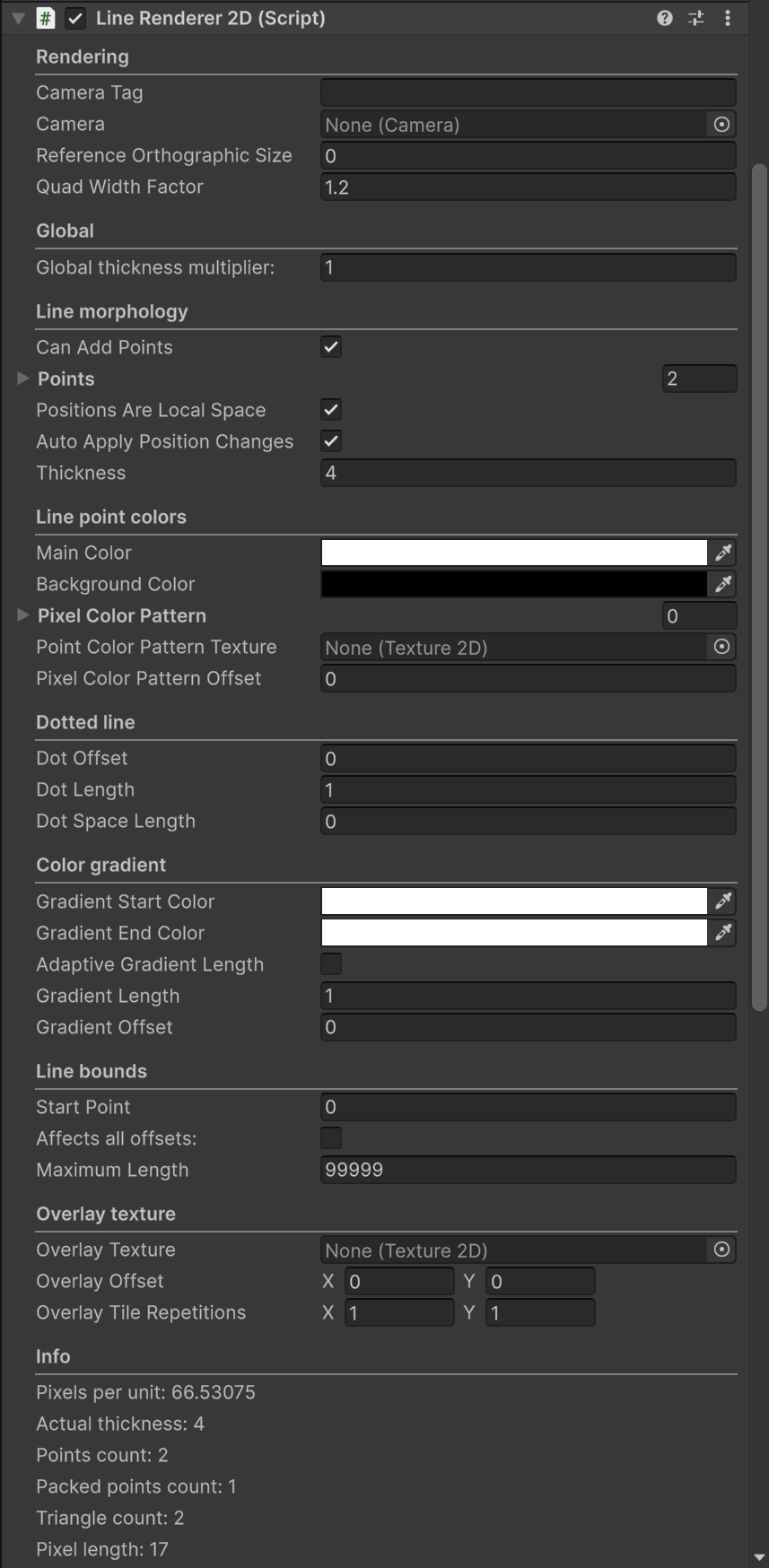
LineRenderer2D Inspector 1.3.0
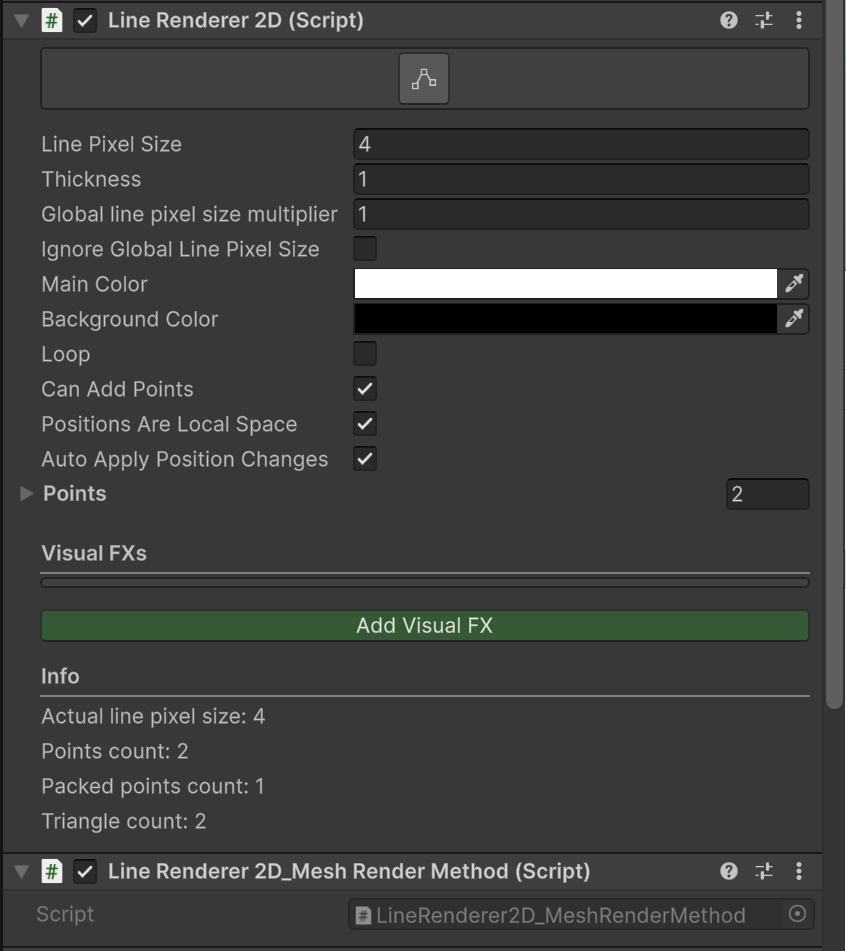
LineRenderer2D Inspector 2.0.0
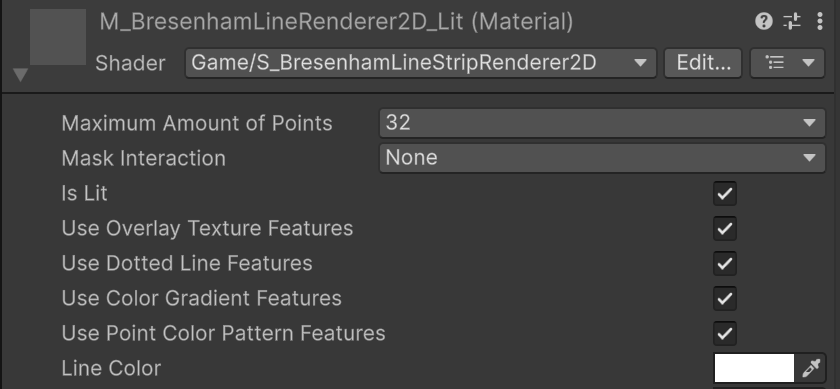
Material 1.3.0
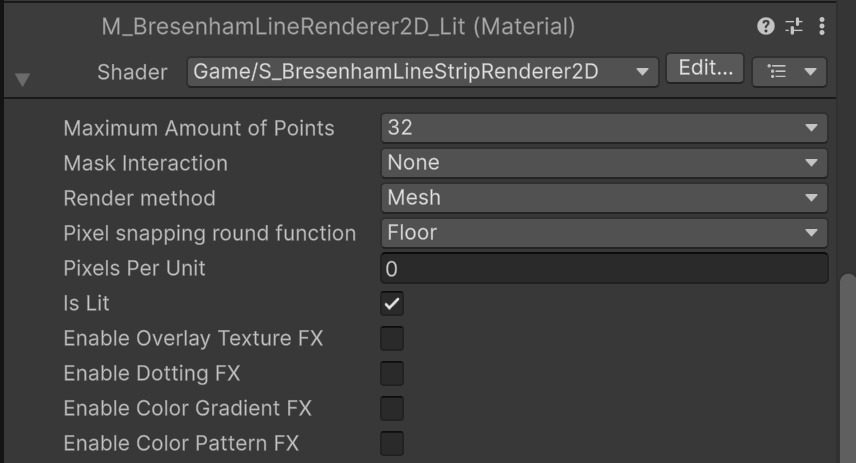
Material 2.0.0
Automatic migration
The easiest way to migrate is by using the migration wizard. During the process, it will search for all the prefabs and scene objects where the LineRendered2D component is used. Then it will add the LineRenderer2D_MeshRenderMethod component and copy old Thickness to LinePixelSize. Besides, if you chose to upgrade to the new visual FX layout, it will check for used visual FX and will copy the parameters to the new array of FX in the component; those visual FX will be enabled in the material of the line and the LINERENDERER2D_NEW_LAYOUT script definition symbol will be added to Player Settings too.
Manual migration
In some specific scenarios the migration wizard may not complete satisfactorily or could not be the best option. You can migrate your prefabs and scene objects manually.
- Add the following script definition symbols to Player Settings:
LINERENDERER2D_NEW_LAYOUT
LINERENDERER2D_MIGRATION
Now you can see the old and the new layouts at the same time. This way, you can add new visual FX to the list and copy the parameters one by one. Enable the FX in the materials. - Add the LineRenderer2D_MeshRenderMethod component next to the LineRenderer2D component. Lines cannot render without this.
- Copy the value in Thickness into LinePixelSize. Set Thickness to 1.
- Remove the LINERENDERER2D_MIGRATION symbol.
Troubleshooting
Lines are black
Select the material asset shared by the lines that look black and check if the default Gradient colors are black. If that’s the case, change them to white.
Visual FX are not showing
Check that the FX is added to the line, and that there are no warning messages in the visual FX list. Check if the visual FX is enabled in the material too.
Lines are now drawing at all or have wrong pixel size
If the line was using a Reference Orthographic Size greater than zero, check that you wrote the right value in the Pixels-Per-Unit field of the material.
Deprecated stuff, as well as the migration wizard, will be removed in future versions.
Breaking changes affecting subclasses
If you extended LineRenderer2D in a subclass, review the following changes.
- protected Camera m_Camera
- protected float m_QuadWidthFactor
- protected float m_ReferenceOrthographicSize
- protected string m_CameraTag
- protected Camera m_editorCamera (editor-only)
- protected float PixelsPerUnit
- protected virtual void OnDestroy()
- protected static int CalculatePixelLength(List<Vector2>, float, float)
- protected virtual void SendPropertiesToGPU(MaterialPropertyBlock materialPropertyBlock)
- protected class LineRenderer2DEditor → now in Scripts/Editor/LineRenderer2DEditor.cs